TRAY TRANSLATOR · WINDOWS · FREE
Select it, snip it,
read it.
Stuck on a paragraph in a foreign language, a screenshot you can’t read, or an email you need to answer in another language? Press a shortcut and Threebrook Interpret shows the translation right there. The rest of the time it sits quietly in the tray.
Free · No sign-up · Installer under 1 MB
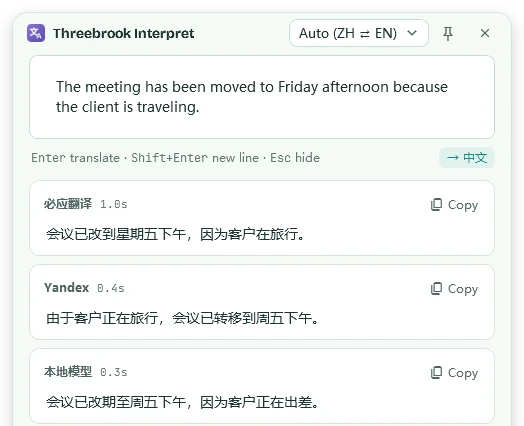
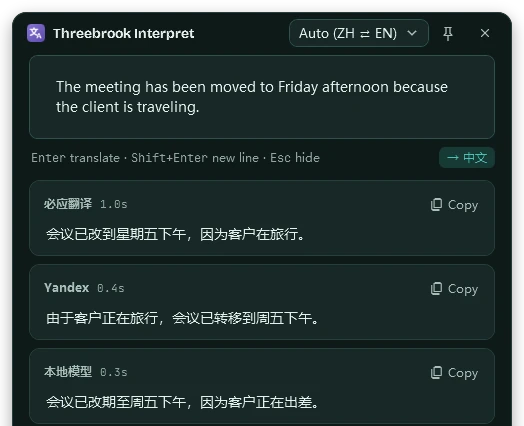
FIVE SHORTCUTS
Translate it where you see it
No more copying text into a translation website and back. Five shortcuts (three for translating, one for screenshots, one for clipboard history) cover the ways foreign text usually shows up. These are the defaults; every one can be changed to whatever suits you.
Selected text
Select some text in a web page, a PDF or a chat app, press the shortcut, and the translation appears next to it.
Screenshot
For text you can’t select (images, video subtitles, app interfaces, scans), draw a box around it. It’s recognized, then translated.
Type it
Type what you want to say; it works out the direction between Chinese and English, and Enter translates. Handy for emails and messages.
Capture · long screenshots
The window under the mouse lights up: click to take it or drag to draw a box. Then annotate it, recognize its text, translate it or pin it. Press L for a long screenshot: scroll down as it stitches, and a whole web page or long chat becomes one image.
Clipboard history
Text and images you’ve copied are kept. Find something you copied earlier and press Enter to paste it back.
SCREENSHOTS
Small, with everything you need
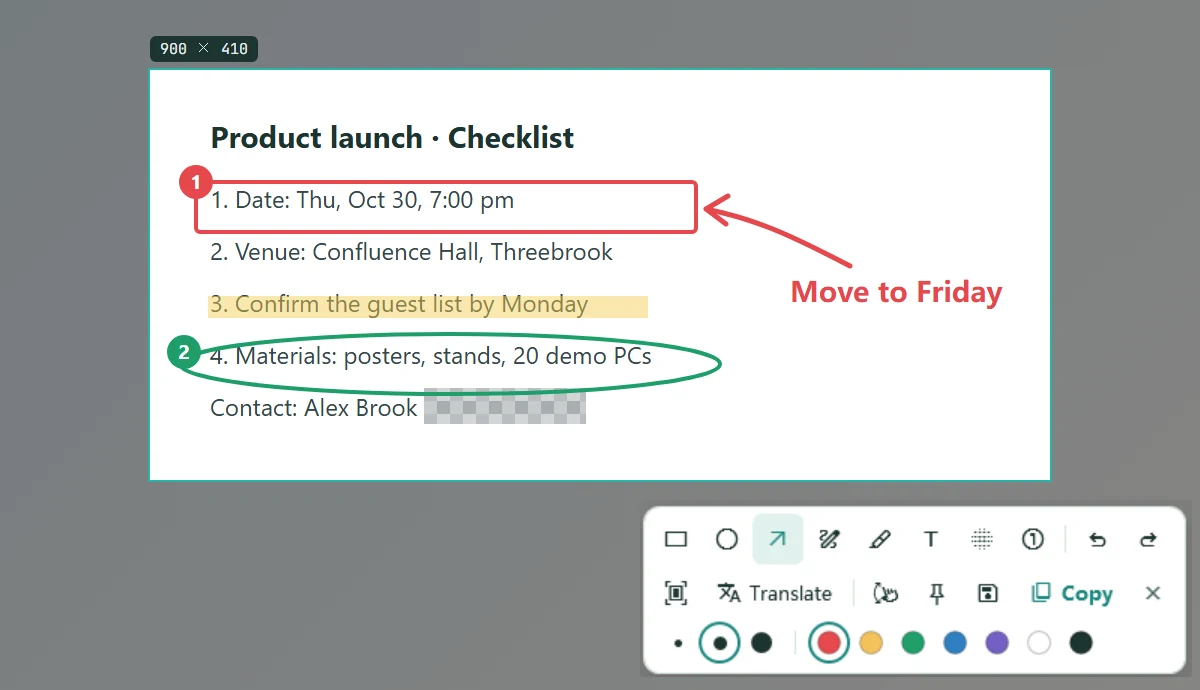
- Rectangle, ellipse, arrow, pen, highlighter, text, mosaic and numbered steps, on keys 1–8
- Copy, save or pin it to the screen, annotations included
- Text recognition and translation still use the original image
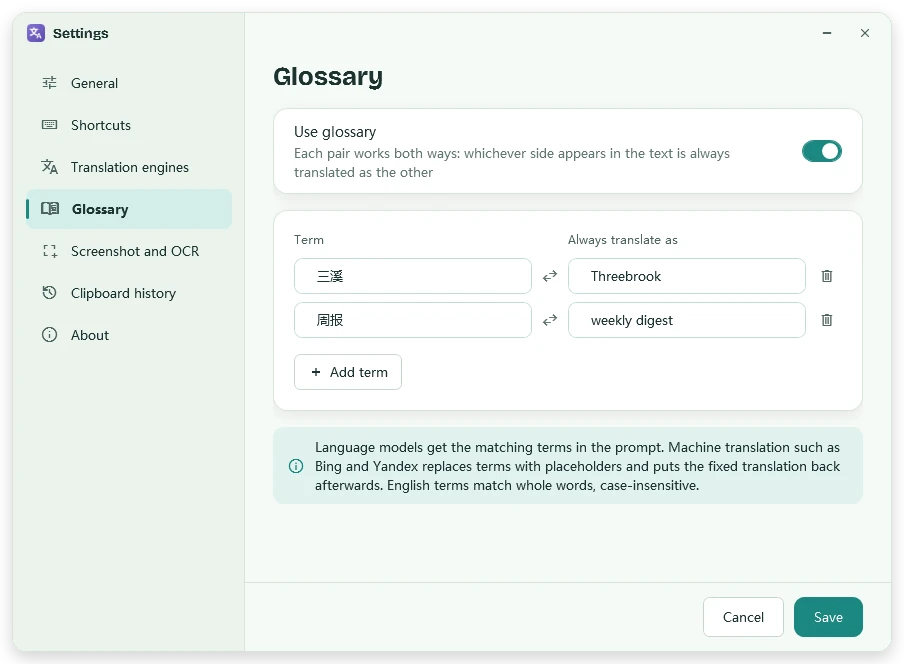
- Names, product terms, your team’s jargon: enter them once and they’re always translated your way
- Works both ways: whichever side appears is translated to the other
- Works with both language models and machine translation
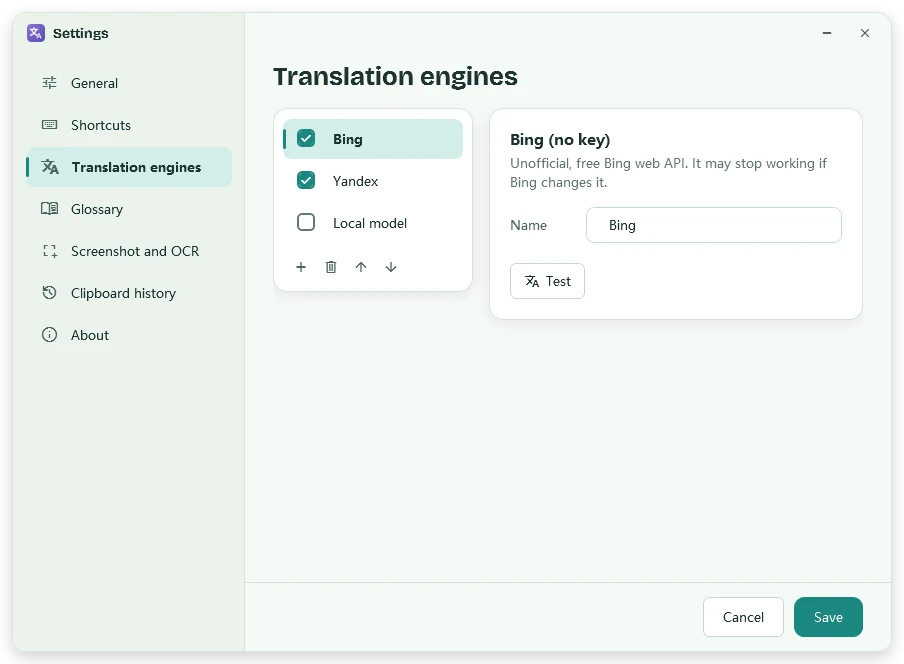
- Turn on a few and compare their results side by side
- Change their order or switch one off at any time
- Each engine has a “Test” button, so you can try it straight away
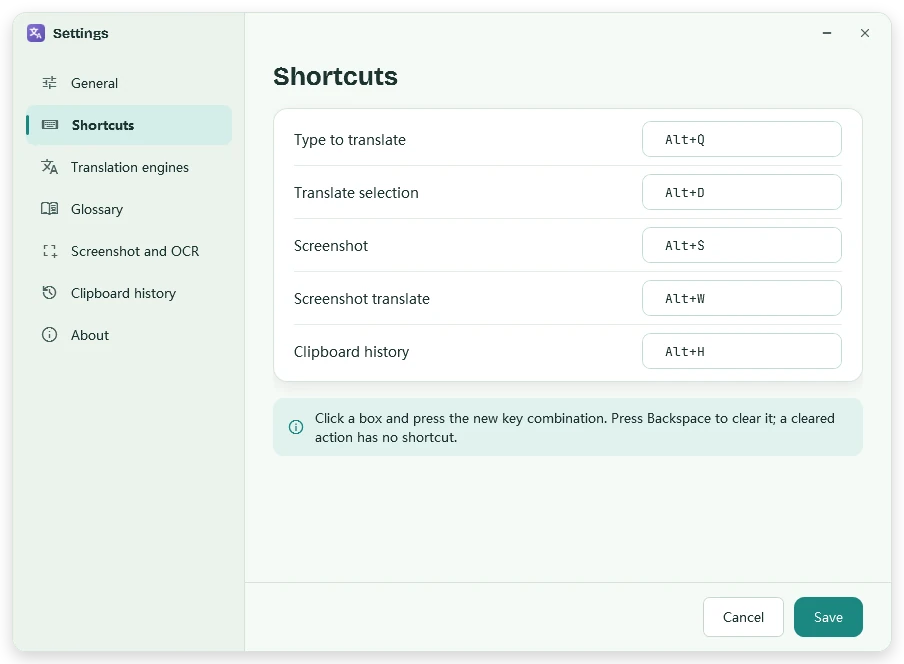
- Click a box and press the new key combination
- Clear a shortcut to leave that key free
- Light and dark themes; switch between Chinese and English anytime
SCREENSHOT TOOLS
More you can do with a capture
Rectangle, arrow, text, mosaic, numbered steps and more, 8 tools on keys 1–8, kept when you copy or save.
Keep a capture on top while you fill in a form or write code. Scroll to zoom, adjust transparency.
Scroll as it stitches, and a whole web page or long chat becomes one image.
Text in a capture is read with the OCR built into Windows, on your PC, ready to copy.
TRANSLATION ENGINES
You choose who translates
Two free online engines work right after installing. For something steadier, add official API keys. For confidential text, connect a language model running on your own PC.
| Engine | What you need | Where your text goes |
|---|---|---|
| Built-in free engines | Nothing, on by default Online | Microsoft Bing’s and Yandex’s servers. These are unofficial interfaces that may stop working if they change, which is why you can run several at once. |
| Official APIs | A key from Baidu, Tencent, Youdao, Azure or DeepL (most have a free tier) Online | That provider’s servers |
| Local model | Ollama, LM Studio and the like: enter the address and model name Stays on your PC | Your own PC |
| Online model | DeepSeek, Zhipu, SiliconFlow and other OpenAI-compatible APIs Online | That model provider |
PRIVACY
Online only when translating, and we tell you where
Threebrook’s software does as much as it can on your own PC. When translating needs an online service, we spell out where your text goes and leave the choice to you.
No account, analytics or ads. It never contacts Threebrook’s servers and doesn’t check for updates on its own.
Text in screenshots is read with the OCR built into Windows, on your PC. Images aren’t uploaded.
Text goes to the engines you’ve turned on only when you translate. Otherwise it stays offline.
Settings, glossary and clipboard history are kept on your PC; API keys are stored encrypted.
Need to keep it confidential? Turn off the online engines and use only a model on your PC, and your text never leaves it. See the privacy policy.
Install it, and next time just press a key
Free · Windows 10 / 11 (64-bit) · Installer or unzip-and-run portable version